
By Fred D’Ignazio — originally published in COMPUTE!’s Gazette Issue 2, August 1983
What kind of personality does your computer have?
Is your computer a dull, dreary nerd – all technical and stuffy? Or is it a fast-talker, full of jokes, riddles, puzzles, and ideas?
You can give your computer any personality you want by writing a “Computer Friend” program.
Alicia’s “Barney”
Recently I was at the West Coast Computer Faire in San Francisco. The Faire is a computer carnival. Almost 50,000 people were crammed into a giant arena stuffed with talking, beeping computers, wandering robots, and the BOOM! BOOM! BOOM! of laser cannons and photon torpedoes.
I was at the COMPUTE! Magazine booth trying to answer people’s questions and tell them about our new COMPUTE! Books and the new COMPUTE!’s Gazette.
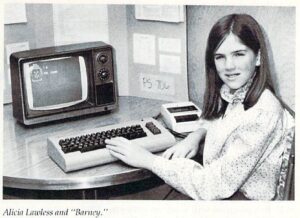
Two people walked up to me. They were, they said, the parents of Alicia Lawless. Alicia had just translated a computer friend program I’d written in COMPUTE! so it would run on the Commodore VIC-20. I said I’d like to see the program.
The next day Alicia’s parents returned and gave me a cassette with the program on it. They also had a letter from Alicia:
Dear Mr. D’Ignazio:
My name is Alicia Lawless. I am twelve years old.
I go to Saint Simons School in Los Altos. I entered the Science Fair there and used your program from COMPUTE! Magazine (September 1982).
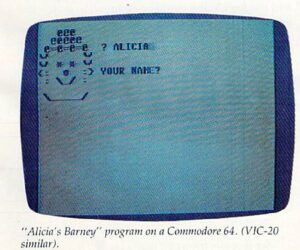
I changed the program so that it would work on the Commodore 64 computer and the VIC-20. I added a small amount of color and changed the face and words.
In my Science Fair project, I compared your Pet Friend (which I renamed Alicia’s Barney) in two computer languages: BASIC and PILOT.
My mother told me that you would like to publish my program in the Gazette. I’m sending you a cassette with Alicia’s Barney on it.
Thank you very much.
Sincerely,
Alicia Lawless
Taming The Friend
My “Friend” program in COMPUTE! was huge – the listing took up several pages in the magazine. Alicia’s Barney is much shorter. It’s easier to understand and enter into your computer. The VIC-20/64 listing is on page 115.
How Barney Works
Lines 3-20
Lines 3 through 7 begin with the REM (Remark – or “remember”) command. REM commands are ignored by the computer. They are for us humans. They tell – in English – what the program does.
Line 10 erases any leftover picture on the TV screen.
Line 20 is a “kill time” loop. The commands FOR and NEXT make the computer spin around in a circle 800 times. The computer counts while it is spinning. It puts its current number into a number cubbyhole (a variable) called “P.” When the computer gets to 800, it stops counting and jumps to line 30 for the next command. (And it isn’t even dizzy!)
Lines 30-80
These lines don’t look like computer commands. GOSUB makes them sound like commands to submarines. It appears that you are telling five submarines to Go! Go! Go! (Go where?)
Actually, these commands tell the computer to take a flying leap into other parts of the program – lines 670, 100, 260, 480, and 260. The command GOSUB is an abbreviation for “go to a subroutine.” A subroutine is a helper program. It helps the main Barney program do a particular job – like clear the screen, make Barney’s eyes wink, or make him “talk”:
GOSUB 670 Draws Barney’s mouth.
GOSUB 100 Draws Barney’s face and makes Barney wink.
GOSUB 260 Makes Barney “talk.”
GOSUB 480 Makes Barney accept messages (such as your name).
GOSUB 260 Makes Barney talk again.
Line 90
On line 90, the program prints four blank lines on the TV screen, then jumps to line 940 (GOTO 940).
Lines 940 to 980
On line 940, the computer once again goes around in circles counting up to 2500. Then it erases the picture screen, and, near the middle of the screen, it prints out “***PRESS ANY KEY***.”
The computer sits there waiting for you to do something. When you do, it jumps to line 980. Line 980 tells the computer to RUN the Barney program again. This way, Barney keeps coming back on stage, over and over, until you press the RUN/STOP button.
Bringing Barney To Life
After you have typed Barney into your computer, type RUN and press the RETURN button. Barney appears in the upper-left corner of your screen. At first he is sound asleep. Then he wakes up and winks at you. “I’M BARNEY THE CLONE,” he says. “YOUR NAME?”
You type your name (lets say it’s CRAB FOOT), and Barney says, “GREAT NAME, CRAB FOOT!”
Then he says, “THANKS FOR PLAYING!” and he vanishes.
A moment later the message “***PRESS ANY KEY***” appears. When you press a key, Barney reappears, wakes up, winks, and asks you your name again.
Adding To Barney
Right now, Barney is a pretty simple-minded fellow. But you can add things to him to make him seem more real. You can make him “talk” using sound effects. You can make him tell jokes or ask riddles. You can change his face and make him look different. You can change Barney into Barbara or into Banana.
I’d like to see your programs and ideas for Barney. Send them to me:
Fred D’Ignazio
c/o COMPUTE!’s Gazette
P.O. Box 5406
Greensboro, NC 27403
I’ll print the best Barney programs and ideas in one of my upcoming articles. Have fun playing with your computer friend!
See program listing on page 115.